Goal: A personal start page with your most important
parameters – for quick one-glance tracking.
Creating a Dashboard – Step
by Step
Note: If you came through the Quick Start flow you’ll already see the
Dashboard configuration menu for the “My Day” dashboard. Instead of the
(Plus) at the top left you’ll see the
in the first row of the preview
section.
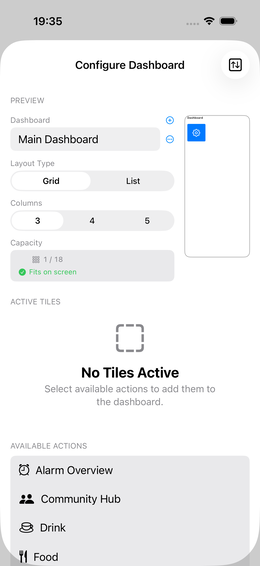
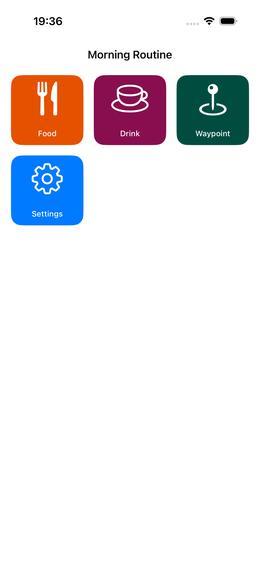
1. Open Settings
Tap the Settings tile with the
gear icon on the Dashboard, or swipe left and
tap → Dashboards
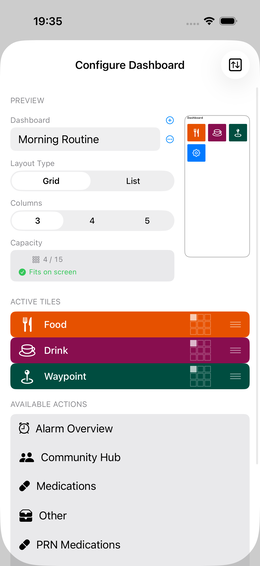
Fig. 13 — Dashboard configuration
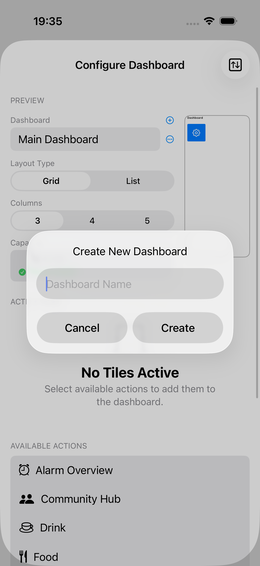
2. Create a New Dashboard
Tap (Plus) in the top right.
Fig. 14 — Name the new dashboard
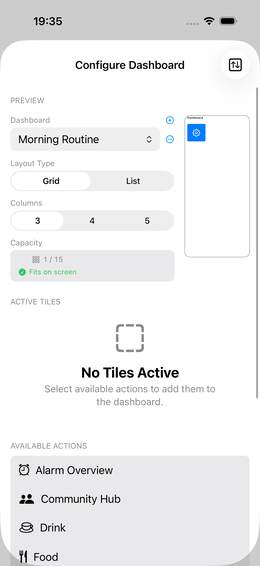
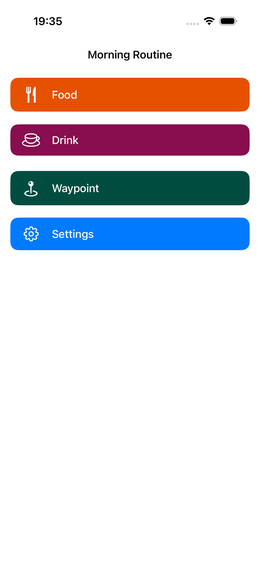
Fig. 15 — Empty new dashboard
3. Select Actions
You see a list of “available actions” – these are
your configured parameters and groups.
Tap an entry to activate it (it moves to the active
list)
Swipe an active entry right to left to deactivate
it
💡 The list shows both individual parameters and
groups. Food, Drinks and
Waypoints are always available.
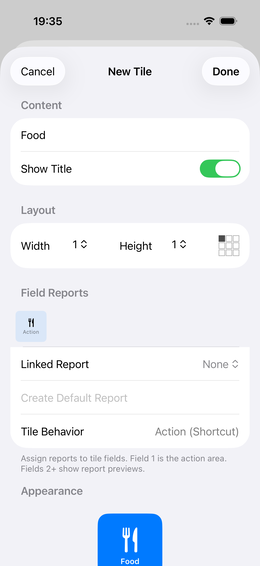
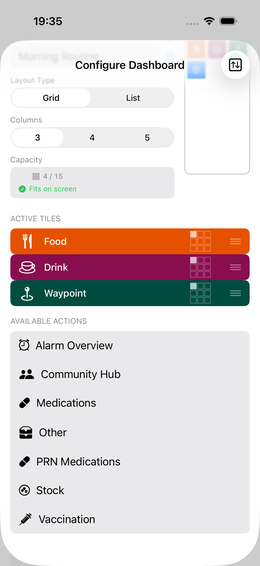
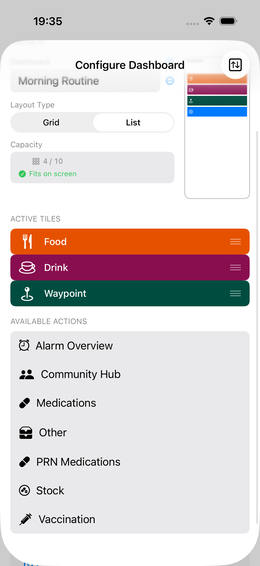
Fig. 16 — Tile editor after selection
Fig. 17 — Three active tiles
 (Plus) at the top left you’ll see the
 in the first row of the preview
section.
in the first row of the preview
section. gear icon on the Dashboard, or swipe left and
tap →
gear icon on the Dashboard, or swipe left and
tap →  Dashboards
parameters and
groups.
Food, Drinks and
Waypoints are always available.
 drag icon
(3 lines on the right) → drag up or down
drag icon
(3 lines on the right) → drag up or down