 Tile Reminders
What is this? Every parameter or group tile on the dashboard can have an alarm reminder. The reminder rings at the set time and opens the input form directly – even from the lock screen.
Setting Up a Reminder
You have three ways to open a tile’s alarm settings:
Way 1 – via the Dashboard Editor: 1. Tap a tile in the Dashboard Editor → “Reminder” 2. Set time and recurrence (daily, weekdays, every N days, …) 3. “Enable” → alarm is active
Way 2 – from the tile itself: Tap a parameter or group tile on the dashboard → tap the alarm clock icon in the top right of the history view. This reaches the alarm settings without going through the editor.
Way 3 – from the parameter list: Long-press a parameter in the parameter list → tap “Reminders” in the context menu. No Dashboard Editor needed.
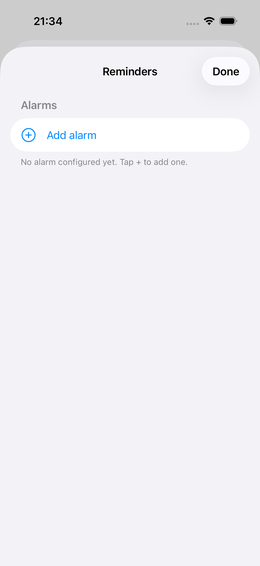
Schedule Options
| Option | Description |
|---|---|
| Daily | Every day at the same time |
| Weekdays | Freely selectable days of the week |
| Every N days | Rhythmic, e.g. every 3rd day |

Overdue Reminder
Alongside the fixed schedule there is a second, supplementary reminder type: “Remind when overdue”. You’ll find it in the alarm settings of each tile under the section of the same name.
What it does
You choose a period – for example 3 days. If you haven’t made an entry for that parameter within this period, you’ll receive a gentle notification the next time you open the app:
“No entry in the last 3 days”
Choosing a period
| Setting | When you are reminded |
|---|---|
| Off | Never (default) |
| Today (24 h) | If no entry has been made today |
| 2 days | If the last entry was more than 2 days ago |
| 3 days | … more than 3 days |
| 1 week | … more than 7 days |
| 2 weeks | … more than 14 days |
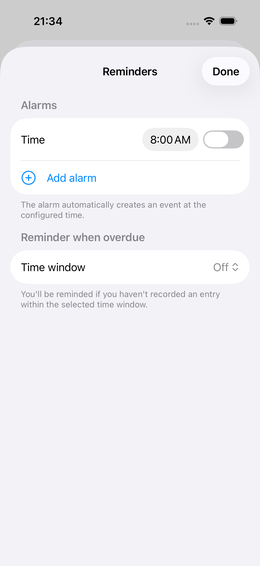
How it differs from an alarm
An alarm rings at a fixed time – even when the phone is locked (AlarmKit).
The overdue reminder is a silent notification that appears when you open the app and the time window has expired. It doesn’t ring on the lock screen and won’t wake you up. Designed as a gentle check for parameters you don’t track daily but want to track regularly – e.g. weight, mood trend, weekly report.
💡 To prevent the app from showing the same message every time you open it, the overdue reminder appears at most once every 6 hours. As soon as you make an entry, the period resets.
Catching Up on Missed Reminders
If a reminder was missed (phone on silent, app not opened), a hint appears on the next app launch:
“You haven’t logged Headache this morning – would you like to do it now?”
You can then log the value retroactively with the correct timestamp or dismiss the hint.
Reliability: Side Button and Silent Dismiss
Reminders use iOS AlarmKit – they ring reliably even when Do Not Disturb is active and the device is fully locked.
If you silence a notification with the side button, the app receives no signal back. Two safety nets ensure you’re still reminded:
Immediate rescue alarm: As soon as an alarm stops ringing, the app immediately schedules another alarm at the configured re-ring interval (default: 60 seconds). This also rings in the background.
Backup alarms on the snooze schedule: Additionally, alarms are scheduled in advance at the snooze interval after the planned reminder time, until the next regular alarm follows.
In both cases: - As soon as you confirm or snooze, all pending re-reminders are automatically cancelled - When skipping, they remain active – you’ll keep being reminded
Changing an Alarm’s Time
If you change the time of an existing alarm, the alarm is automatically rescheduled the next time the app comes to the foreground. The old time is completely discarded – you don’t need to do anything else.
Ringtone Profiles
Each alarm slot can be assigned a ringtone profile – it determines how persistently the alarm rings. You’ll find the profile picker in the alarm settings of each tile.
Built-in Profiles
| Profile | Ring duration | Pause | Snooze | When to use |
|---|---|---|---|---|
| Standard | 10 s | 60 s | 10 min | Everyday, moderate reminding |
| Wake-up | 30 s | none | 5 min | When you need to be sure you wake up |
| Meeting | 3 s | 10 min | 30 min | In the office, discreet reminder |
| Degrading | 30 s (first), 5 s (follow-up) | 2 min | 10 min | First ring loud, repeats quiet |
Custom Profiles
Via Settings → Alarms → Profiles you can create custom profiles with freely chosen values: ring duration, pre-ring duration, pause between repeats and snooze interval.
💡 Medication reminders are a separate feature with extended logic – see Medications.