 Configuring
Recipes
Configuring
Recipes
What is a recipe? The definition of a food or drink – with ingredients and quantities – so the app can calculate nutritional values.
When Is a Detailed Recipe Worth It?
| Situation | Recommendation |
|---|---|
| Breakfast you eat every day | ✅ Create a full recipe |
| Favorite lunch | ✅ Create a full recipe |
| Restaurant visit (one-off) | 💡 A placeholder is enough |
| Holiday snack | 💡 A placeholder is enough |
Pareto principle: Put the effort into the 20% of meals that make up 80% of your diet. The rest can be logged as placeholders.
The 3 Recipe Types
Full Recipe
All ingredients with quantities defined → nutritional analysis possible.
 Placeholder
Only a name, no ingredients → logging possible, but no nutritional analysis.
 Variant Recipe
A group of interchangeable ingredients – you choose the current variant when logging. Example: Coffee with milk → milk can be whole milk, oat milk or none.
Creating a New Recipe
Entry Point: Search
Recipes are accessible via two routes – with a slightly different view:
Settings → Recipes (management)
The recipe list has its own search field directly above the filter chips. Start typing and the filter chips update immediately with the match counts per category. The X button on the right clears the search text; the keyboard closes automatically when scrolling.
Tap a Meal tile (directly while logging)
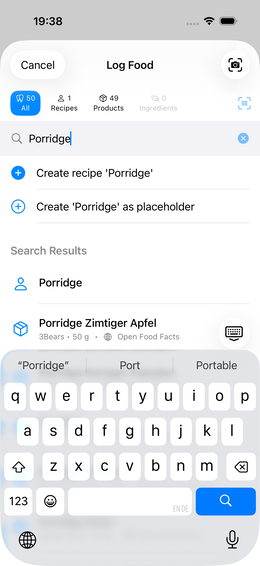
When the search field is still empty, the app shows a prominent entry: fork icon, a short hint text and a large barcode button. As soon as you start typing, the view switches to the normal search results list with filter chips.
💡 The large barcode button in the empty state makes it particularly easy to start a scan directly – without having to search first.
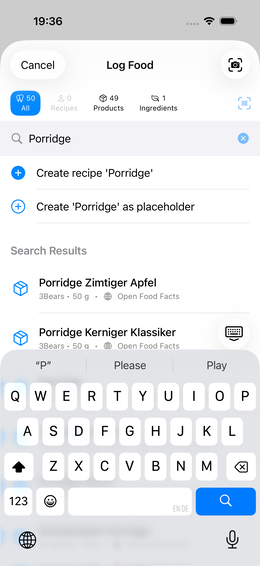
Entering a name searches three sources simultaneously – visible via the counters in the filter chips:
| Filter chip | What it shows |
|---|---|
| All | Everything combined |
| Recipes | Your own saved recipes |
| Products | Results from Open Food Facts (packaged products) |
| Ingredients | Results from BLS (basic foods) |
| ★ Favorites | Only recipes marked as favorites |
💡 The number in the chip shows how many results exist in that category. No result = chip grayed out.
Choose Creation Method
If no matching result is available, the app offers two direct actions (visible directly below the search field):
| Option | When to use |
|---|---|
| “Create recipe ‘…’” | Enter ingredients right now |
| “Add ‘…’ as placeholder” | No time now – complete later |
Recipe Editor
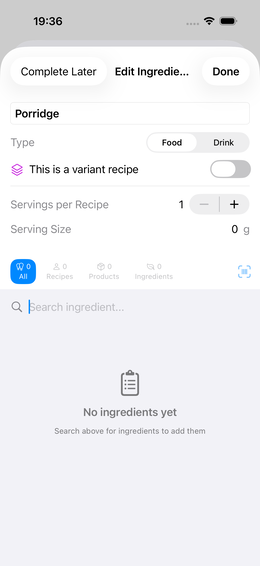
After creating, the editor opens:
- Name – freely editable
- Type – Food or Drink (affects units and analysis)
- Variant recipe – toggle on if the recipe should have options
- Servings per recipe – how many servings does the total quantity yield?
- Serving size – what is one serving?
Adding Ingredients
Step 1: Search
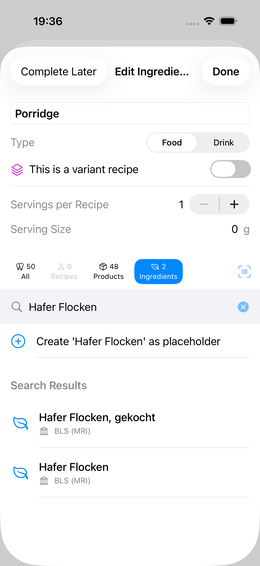
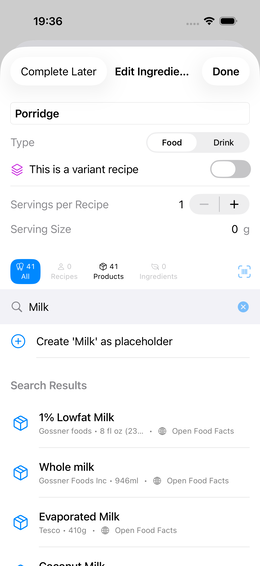
Enter the ingredient name in the editor’s search field. The filter chips show results per source again:
⏳ OFF search is limited to once every 10 seconds (Open Food Facts guideline). A brief wait is normal.
🌍 Country hint: If you have a country filter active in OFF search and no products are found, a hint banner appears with an “All countries” button. This expands the search to the global OFF database — without having to reset the filter manually.
Step 2: Enter Quantity
After tapping an ingredient you enter quantity and unit:
Switch units with the stepper on the right (g, ml, pieces, …). Then “Add”.
Editing an ingredient’s quantity later
Already added an ingredient and want to correct the amount? Two ways:
- Swipe left on the ingredient row → “Edit amount” button appears
- Long press on the ingredient row → context menu → “Edit amount”
The quantity input opens with the current amount pre-filled. Change it → “Apply”.
💡 Recipes can be nested to any depth: a recipe “Pasta Bolognese” can contain the recipe “Tomato sauce” as an ingredient.
| ## Quick Logging: Recently Used |
| When you tap a meal tile and the search field is still empty, the app shows a “Recently” section directly above the search results: the five most recently logged meals as quick-tap chips. |
| > 💡 Saves time for routine meals: Breakfast, coffee, standard lunch — one tap and it’s logged. No searching, no scrolling. |
| The chips show the meal name; tapping one opens the quantity/variant selection for the last entry directly. |
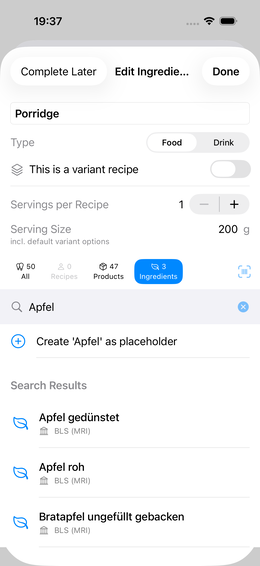
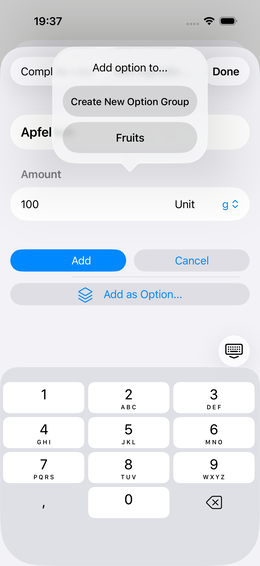
When Logging: Selecting a Variant
When logging a meal the full logging view appears:
Quick picker (top): Select common quantities with a tap (e.g. 200ml, 250ml, 330ml, 500ml). The slider below allows fine intermediate values.
Customize recipe (bottom): All variant groups of the recipe appear here with the available options. Next to each option is the calorie impact (e.g. +32 kcal for whole milk, +25 kcal for oat milk). Tap an option to select it.
The pre-selection is remembered for the next logging – you only need to change it when you’re having something different.
Recipe with Many Ingredients: Pasta Example
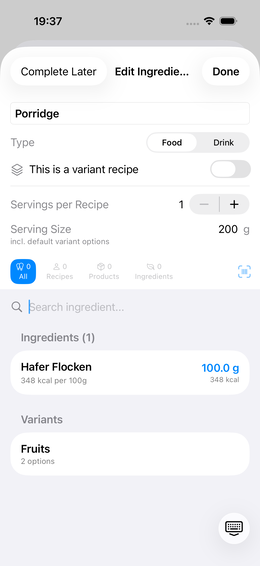
Recipes with multiple ingredients look like this in the editor:
Each ingredient shows calories per 100g as reference. The serving size determines how much counts as “one serving”.
BLS Linking for OFF Products
OFF products (scanned products) often only contain macronutrients (energy, protein, fat, carbohydrates). For a complete micronutrient analysis (vitamins, minerals, amino acids) the app links each product ingredient to a BLS entry.
This happens partly automatically – you can see the progress in the product detail view:
Color coding of links:
| Color | Meaning |
|---|---|
| 🟦 Blue – “Manually linked” | You confirmed the link yourself |
| 🟧 Orange – “Automatic (uncertain)” | App linked it, but percentage below 70% – please check |
| ✅ Green – “Automatic (safe)” | Link with high similarity |
| ⬜ Gray – “Not yet linked” | Ingredient couldn’t be matched |
The percentage shows the similarity between product ingredient and BLS entry.
Correcting a Link Manually
Tap an ingredient → the app shows suggestions with similarity scores:
(Screenshot: konfiguration-rezept-13-bls-uebersicht)
You can switch between Auto-linking (AI suggestions sorted by similarity) and BLS search (free text search). Tap the desired entry to apply it.
💡 Links are optional, but they significantly improve the quality of the analysis.
→ More on the difference between BLS and OFF: Data sources
Origin & Processing (Company, NOVA & More)
For scanned products (OFF), the product detail view can optionally show an “Origin & Processing” section with extra facts from Open Food Facts and Wikidata:
| Row | Example |
|---|---|
| Processing grade (NOVA) | “Processing grade per Open Food Facts: NOVA 4” |
| Parent company | “Parent company per Wikidata (as of 2026-05): Nestlé S.A.” |
| Sale countries | “Sold per Open Food Facts in: Germany, Austria, …” |
| Ingredient labels | “Labels per Open Food Facts: Organic, Vegan, …” |
💡 This section is fully opt-in and off by default — the only exception is the processing grade (NOVA), which is always shown regardless of the setting.
⚠️ Company, country, and label data come from the community databases Open Food Facts and Wikidata — they can be incomplete or outdated. When in doubt, trust the label.
(Screenshot: konfiguration-rezept-14-bls-manuell)
Enabling & configuring
 Settings → Nutrition → Origin &
Processing
Settings → Nutrition → Origin &
Processing
- “Show company and sale facts” — master toggle for parent company, sale countries, and labels (NOVA stays visible regardless)
- NOVA threshold — Off / from NOVA 3 / from NOVA 4: shows a hint while scanning when a product reaches your threshold. Products are never hidden, only flagged
My Lists — keeping an eye on companies
Under “My Lists” you can create your own lists of companies you want to track:
- “New List” → give it a name
- Search for a company (data per Wikidata) → add it to the list
If the app finds a match while scanning, the origin section also shows which of your lists the company is on. No hint doesn’t automatically mean the product isn’t tied to a listed company — company data is incomplete.
Nutrition Report
If you log meals regularly, you can open the Nutrition Report under Reports. It shows average daily intake for a selectable time period – with a quality rating showing how reliable the data basis is.
Data quality: The app rates how complete your entries are and whether nutritional values come from precise (BLS/OFF linked) or estimated (placeholder) sources.
Completing a Placeholder Later
- Settings → Recipes
- Find the placeholder in the list
- Tap → add ingredients → “Done”
All previous events with this placeholder are automatically linked to the new nutritional data.
Frequently Asked Questions
Can I create a recipe directly while logging? Yes. When tapping a meal tile on the dashboard you can enter a new name and create it immediately as a placeholder or full recipe – without going to Settings first.
Can recipes be exported or shared? Yes. In the
recipe list (Settings → Recipes) there is an Import/Export
symbol at the top right. Use it to export individual or all
recipes as a .ioom file. An optional toggle
“Include photos” (active by default) embeds associated
nutrition photos as Base64 in the file, so they’re immediately available
when importing on another device. The exported file can be shared via
AirDrop, Mail or iCloud.
What’s the difference between BLS and OFF? BLS is a scientific nutrient database for basic foods (raw ingredients). OFF is a crowdsourced database for packaged products (barcode scan). → Data sources explained
Barcode scan shows “Product not found” – what now? The app asks whether you want to contribute photos to OpenFoodFacts or create a placeholder. New since v1.8: there is also a “Skip” option if you don’t want to do either right now — the dialog closes without creating an entry.