Mål: En personlig startsida med dina viktigaste
parametrar – för snabb spårning med en blick.
Skapa en instrumentpanel
– steg för steg
Obs: Om du kom hit via snabbstartsflödet ser du redan
konfigurationsmenyn för instrumentpanelen “Min dag”. Istället för
(Plus) uppe till vänster ser du
i första raden av
förhandsgranskningssektionen.
1. Öppna Inställningar
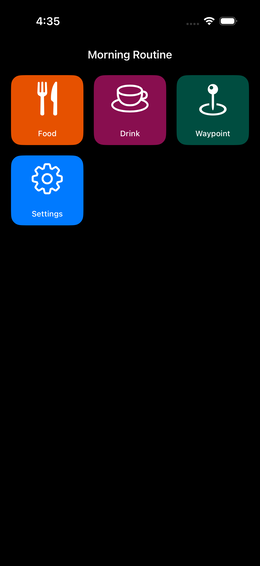
Tryck på rutan Inställningar med
kugghjulsikonen på
instrumentpanelen, eller svep vänster och tryck →
Instrumentpaneler
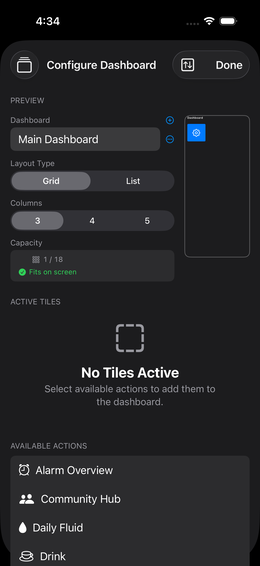
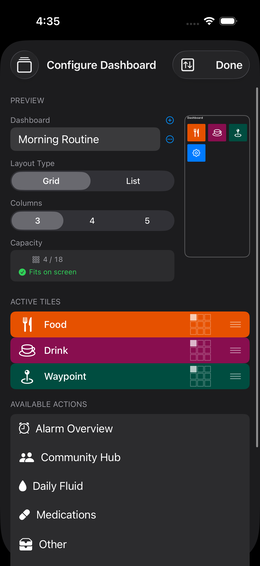
Fig. 12 — Instrumentpanelskonfiguration
2. Skapa en ny instrumentpanel
Tryck på (Plus) uppe till höger.
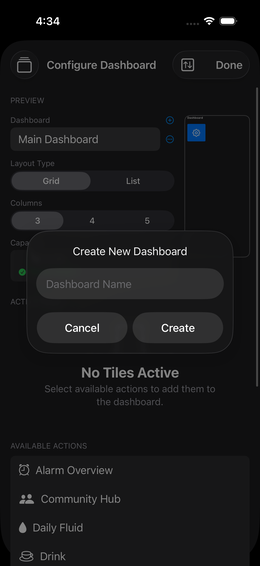
Fig. 13 — Namnge ny instrumentpanel
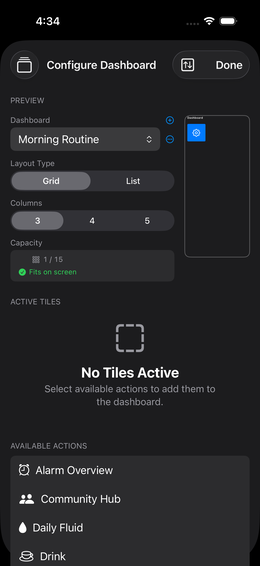
Fig. 14 — Tom ny instrumentpanel
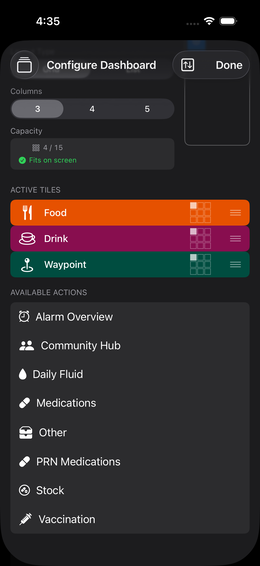
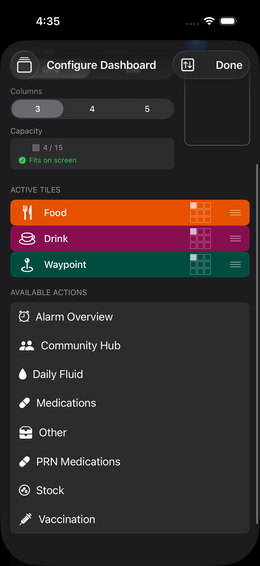
3. Välj åtgärder
Du ser en lista med “tillgängliga åtgärder” – det är
dina konfigurerade parametrar och grupper.
Tryck på en post för att aktivera den (den flyttas
till den aktiva listan)
Svep en aktiv post från höger till vänster för att
inaktivera den
💡 Listan visar både enskilda parametrar och
grupper. Mat, dryck och
vägpunkter är alltid tillgängliga.
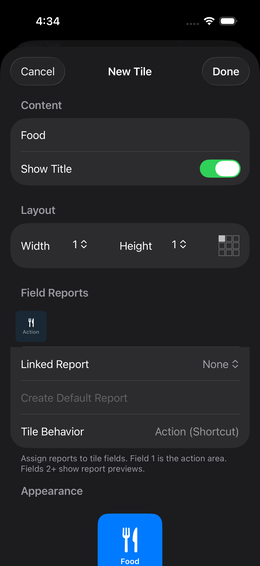
Fig. 15 — Rutredigerare efter val
Fig. 16 — Tre aktiva rutor
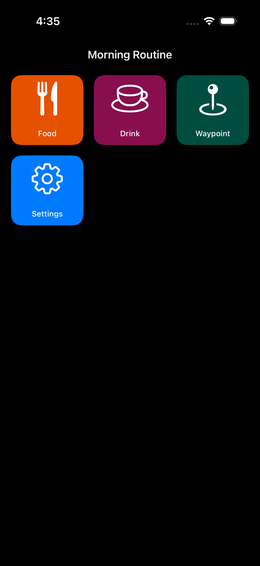
Tryck på “Klar” – din instrumentpanel blir appens
nya startsida.
Optimera din instrumentpanel
Ändra ordning på rutor: Långt tryck på
dragikonen (3 linjer till höger) → dra uppåt eller nedåt
Kontrollera kapacitet: Appen visar hur många rutor
som får plats på skärmen. En orange triangel betyder: den här rutan
kommer att klippas av → ändra ordning.
Flera instrumentpaneler: Du kan skapa så många
instrumentpaneler du vill för olika sammanhang (t.ex. “Morgonrutin”,
“Träning”, “Kost”).
Om något ser fel ut
Kört vilse i appen? Stäng appen och starta om den –
du hamnar alltid på din instrumentpanel.
Tom instrumentpanel? Kontrollera om du har ställt
in parametrar → Parametrar
Checklista
🎉 Grundinställningen klar!
Nu har du allt du behöver för att komma igång. Nästa steg beror på
ditt användningsfall:
 (Plus) uppe till vänster ser du
 i första raden av
förhandsgranskningssektionen.
i första raden av
förhandsgranskningssektionen. kugghjulsikonen på
instrumentpanelen, eller svep vänster och tryck →
kugghjulsikonen på
instrumentpanelen, eller svep vänster och tryck →
 Instrumentpaneler
parametrar och
grupper.
Mat, dryck och
vägpunkter är alltid tillgängliga.
 dragikonen (3 linjer till höger) → dra uppåt eller nedåt